
Setting up a new game in E6 ConnectUpdated 5 months ago
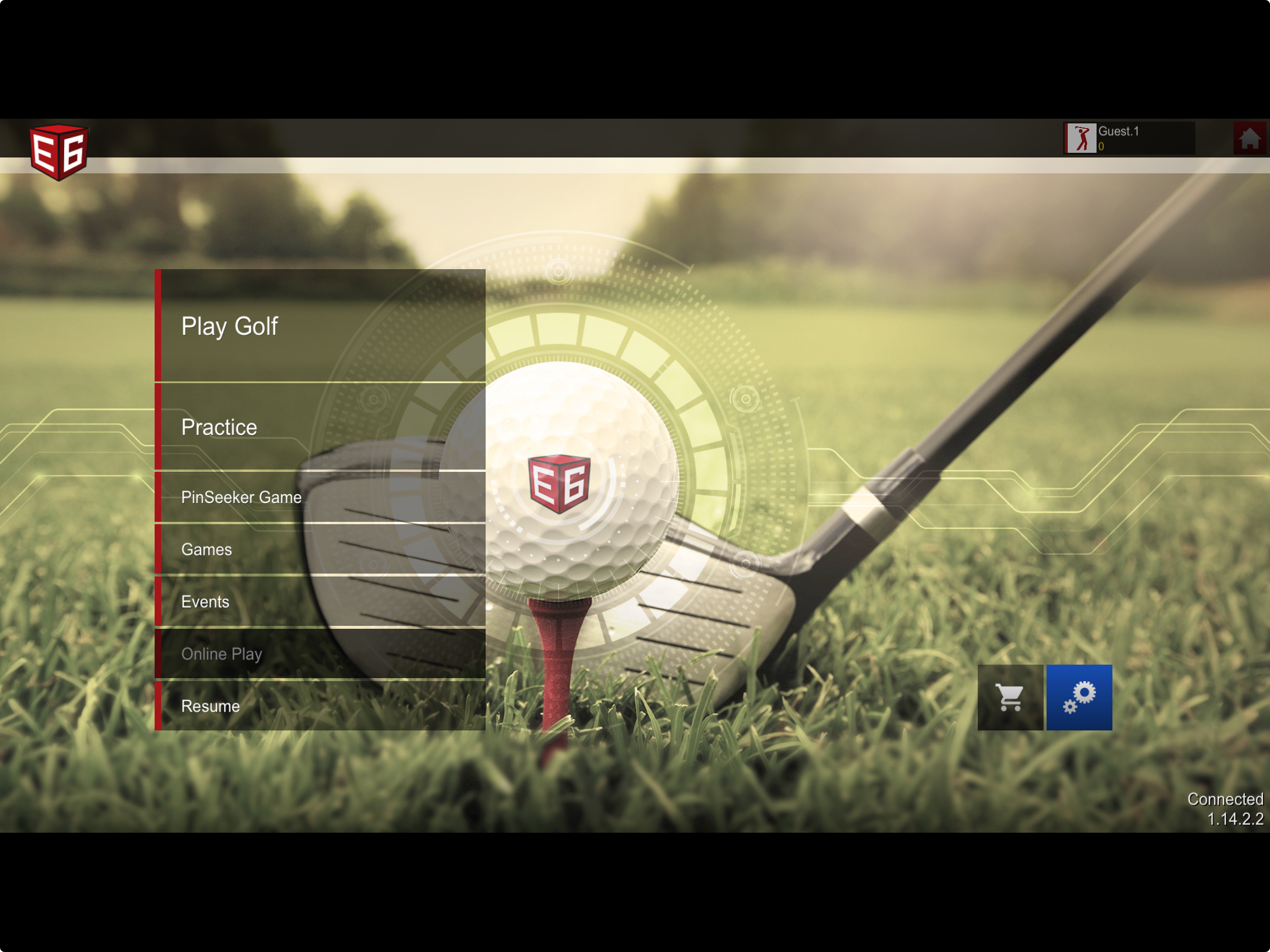
Choose your E6 Game Mode
As part of the E6 Connect GolfTrak 5-Course Special license, you have access to the following game modes:
Play Mode at up to 5-Courses:
Aviara Golf Club
Bandon Dunes Golf Resort
Sanctuary Golf Course
Stone Canyon Golf Club
Wade Hampton Golf Course
Practice Mode on the E6 Driving Range of Short Game areas
Game Mode ideal for multi-players in a range of challenges such as:
Closest to the pin
Long Drive
Long Drive World Challenge
Event Mode against other players
PinSeeker Game, where you can compete to win real cash for closest to the pin tournaments. Find out more about PinSeeker here.
Online Game mode is not available as part of the GolfTrak 5-Course
Setting up a new game mode in E6
To ensure GolfTrak is able to connect to E6 and sent shot data to the game, follow these steps:
Step 1: Check network status
Your device needs to be connected to the internet to be able to send and receive data from GolfTrak. Ensure your device has a strong and stable network connection.
Step 2: Check the simulator connection
Ensure you have chosen GolfTrak as your simulator in E6. Navigate to Settings > Simulator > Tracking System and choose GolfTrak as your simulator

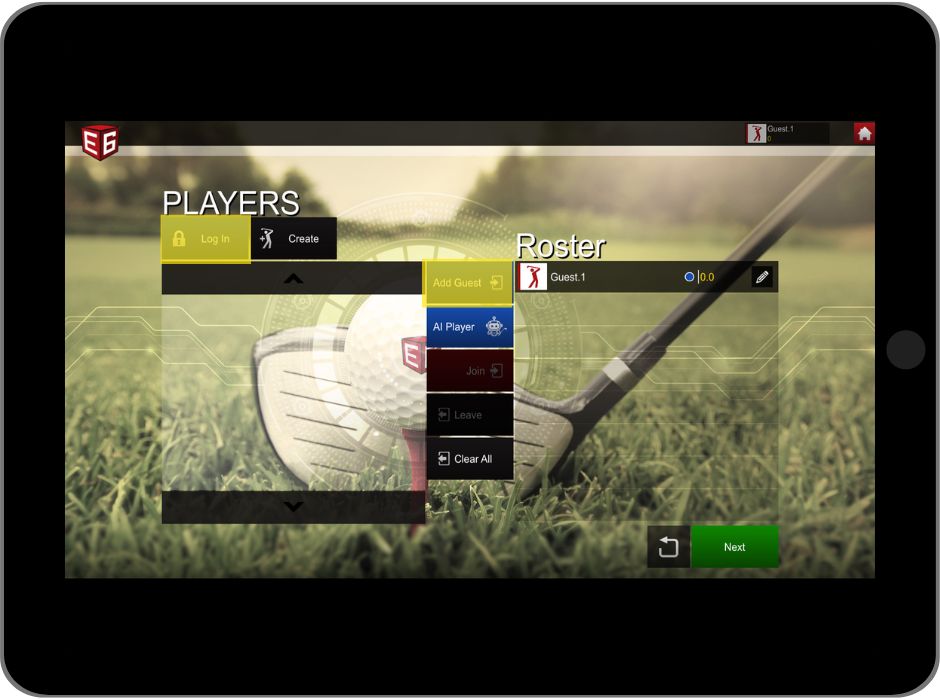
Step 3: Choose game mode
- Choose from the available game modes in E6 Connect
- You may play as a 'Guest' in E6 and GolfTrak will still be able to send and receive shot data. Alternatively, you can choose to login to record your game on your E6 Connect profile.
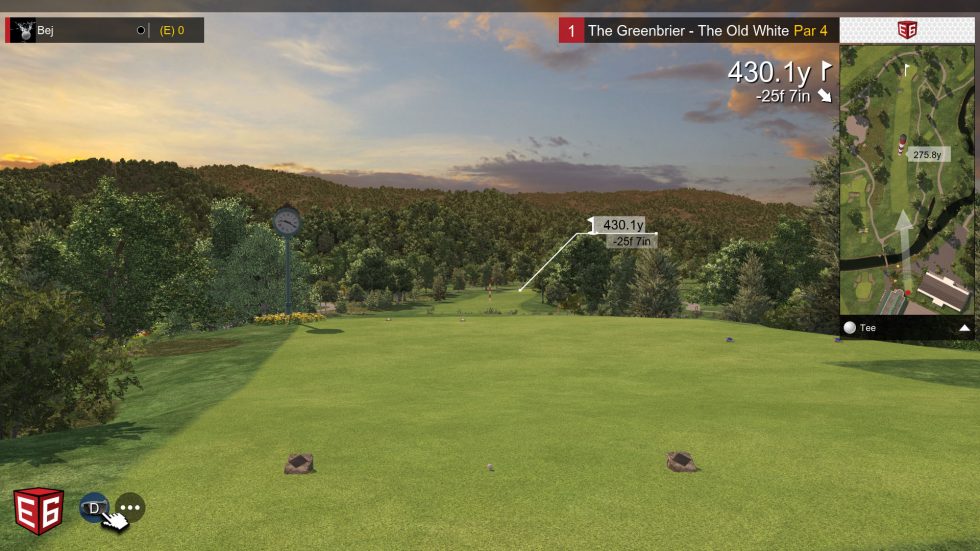
Step 4: Load game
Once you have chosen your game mode, wait for the E6 game display to appear
Step 5: Test GolfTrak Connection
Once you have followed the steps above, attempt to connect to E6 in the GolfTrak app