
Setting up your E6 ConnectionUpdated 5 months ago
The E6 connection process has changed for GolfTrak Version 2.1.2 onwards. For existing customers, please follow the steps to unbind your existing license here
To integrate GolfTrak with E6, you will need to purchase an E6 Subscription through GolfTrak. This article will guide you through the process.
Step 1: Purchase a PRO+ subscription on the GolfTrak app
To access the E6 GolfTrak 5 Course Subscription you must purchase a GolfTrak PRO+ subscription. This can be done via the app through the ‘Play Virtual Golf’ section or any upgrade banner.
Step 2: Refresh the GolfTrak App
Once you have purchased your subscription, navigate back to the GolfTrak app and select the Play Virtual Golf option from the homepage.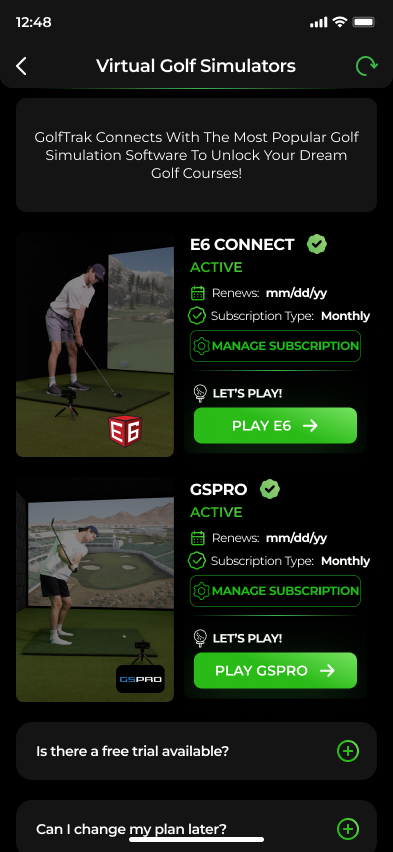
Step 3: Download and login to E6 Connect
You will need to download E6 Connect on a separate device then login to your E6 Connect account so it can receive data from GolfTrak.
You MUST log in to the E6 Connect app using the same email you used to purchase your subscription. You cannot use an existing E6 account that does not have the same email as the one you use in GolfTrak.
If you have NEVER logged into E6 Connect before you need to reset your password to access your new E6 account, reset your password here
If you have used a private Apple ID email, eg [email protected], you will need to use the default password to reset your E6 email address. The default password is GOLFTRAK
Step 4: Bind the correct E6 License
Once logged in, choose the correct GolfTrak license:
Choose to 'bind a new license' if presented with the option
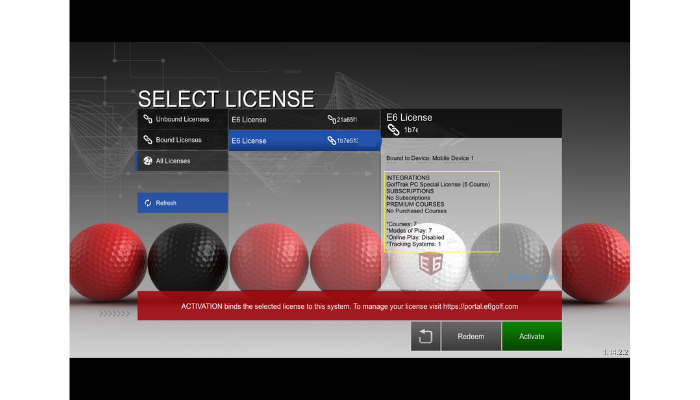
On the Select License screen, choose 'All Licenses'
Find the license ID titled 'GolfTrak PC Special License (5-Course)'and select it.
Tap the 'Activate' button to confirm
Step 5: Using GolfTrak as the launch monitor for E6
To ensure a steady and consistent connection between GolfTrak and E6, make sure you have the following:
A strong network connection on both devices
You have downloaded E6 on a separate device from the one you will be using GolfTrak on
You have signed in to E6 with the same email you use for GolfTrak and have selected the correct license
You have a game setup and ready to play in E6
In your E6 Connect app on PC or iOS
Check that GolfTrak'is selected as the Tracking System under Settings > Simulator

Confirm the connection to GolfTrak by waiting for the 'Connected to GolfTrak' alert
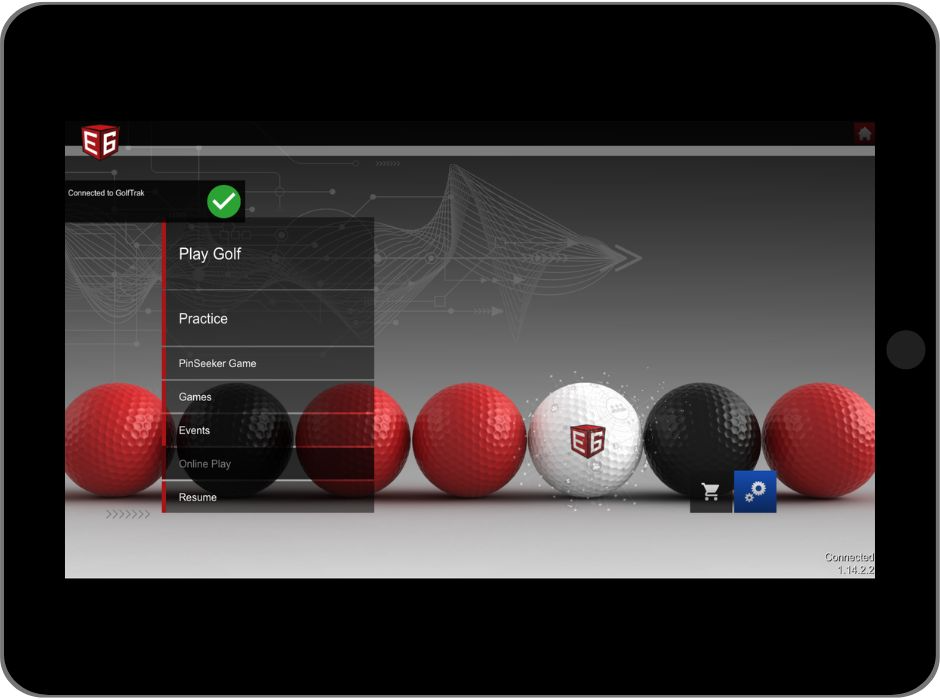
Choose the game type and mode you wish to play in E6 and have the game ready to play.
In the GolfTrak app
Navigate to the 'Simulators' page in the GolfTrak main navigation:
Make sure the E6 integration is active (check Step 2 to troubleshoot) and select 'Play E6'

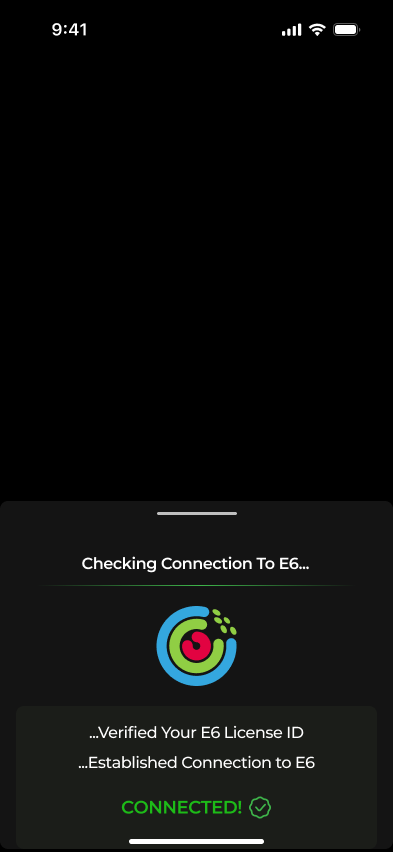
Check that you have all the required setup steps complete and select 'Test Connection'

Once it has established a proper connection and verified there is a game ready, you will receive Connected confirmation.
Throughout the game, you can monitor the connection status in GolfTrak via the indicator on the launch monitor screen
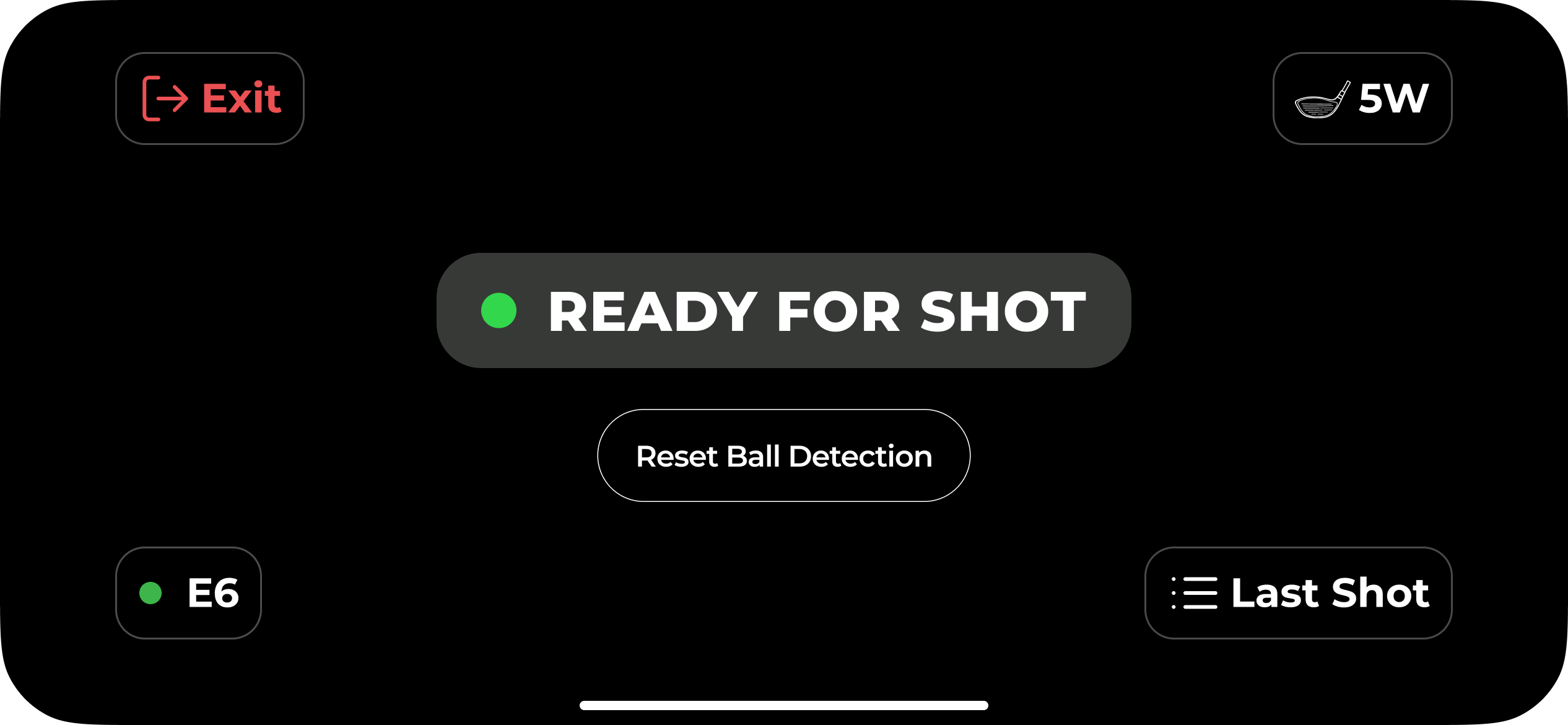
Congrats! You're now ready to play E6 Connect using GolfTrak