Unbind an existing E6 LicenseUpdated 5 months ago
Version 2.1 of GolfTrak requires ALL existing users of an E6 GolfTrak Special License to update the E6 license their device is connected to.
Each device can only connect to one E6 license at a time. If you have an existing license connected to your E6 app you will need to unbind it and select the updated E6 GolfTrak Special PC License, regardless of which device type you are using for E6
Unbind your E6 License
Follow these steps to unbind your existing E6 license:
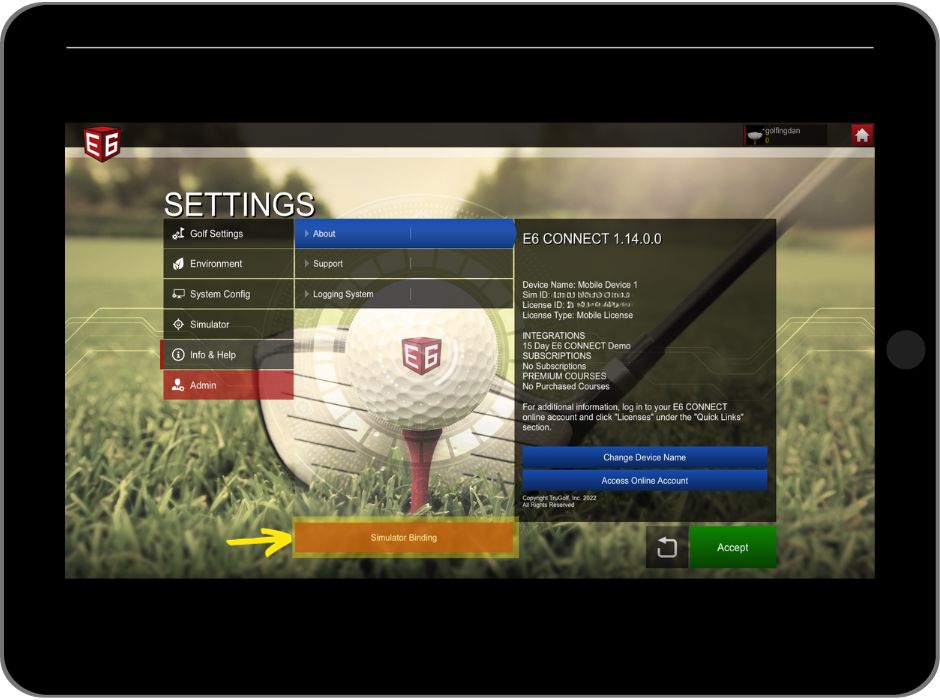
- In the E6 app, navigate to Settings > Info & Help > About to check which license is currently bound to this device
- To choose a different license, select Simulator Binding
- Choose to Unbind the license.
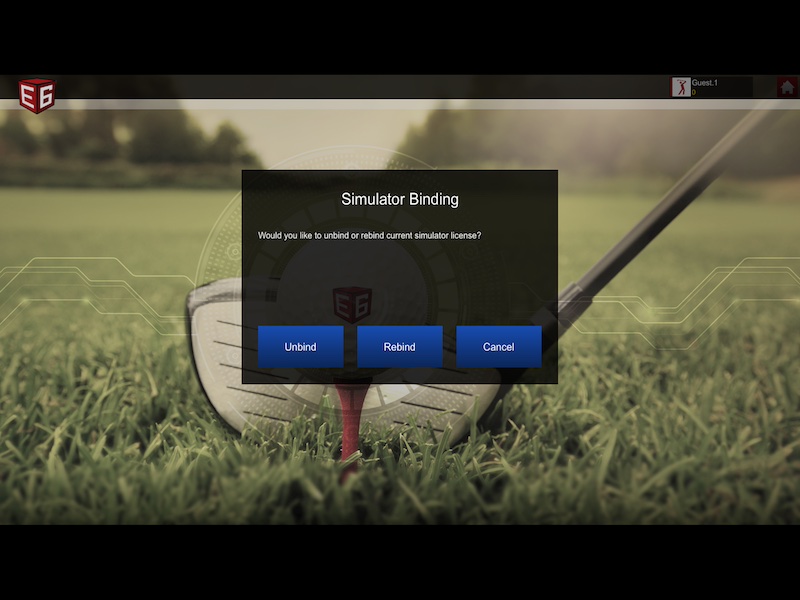
This will redirect you to the main E6 login screen in your app.
Rebind the new E6 license
Login to your E6 app using your existing E6 credentials
Choose to 'bind a new license' if presented with the option
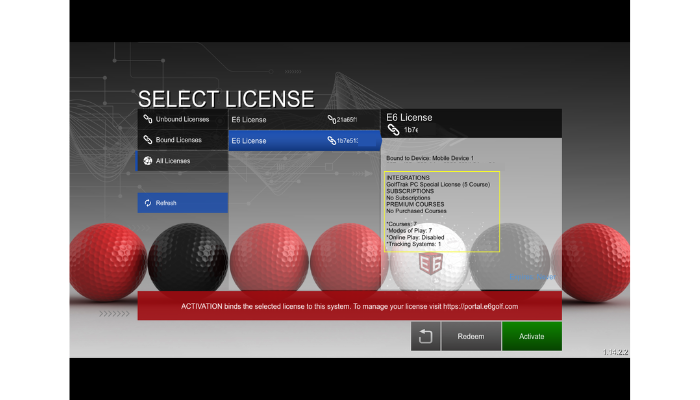
On the Select License screen, choose 'All Licenses'
Find the license ID titled 'GolfTrak PC Special License (5-Course)'and select it.
Tap the 'Activate' button to confirm