Indoor Mode is built to help you capture accurate swing and ball data when you’re practicing inside. But indoor environments can create challenges that don’t exist outdoors, like poor lighting, limited ball flight, and background clutter.
To accurately measure your shot result indoors, there are 3 important elements that you need:
Accurate measurement of the distance between your phone and the impact surface
A consistent, soft surface where your ball makes an indent that can be detected by the phone
A well-lit area with a minimum of 8 ft./2.5m and a maximum of 18 ft./5.5m between your phone and the impact surface.
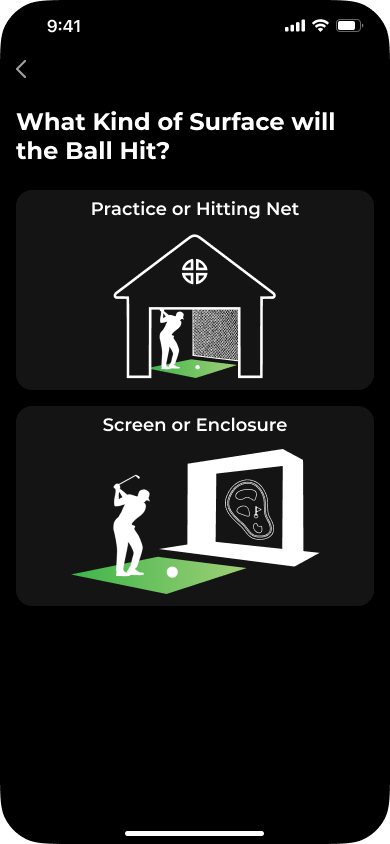
Our AI Models and algorithms use different processing depending on the surface the ball impacts.
Both options must have soft, absorbing material so the ball’s impact point can be detected.
Practice or Hitting Net
Surfaces that have transparent material
They are designed to ‘catch’ the ball’s impact easily.
Includes various shapes and designs, such as domes, curves, or temporary structures.
Screen or Enclosure
Solid impact surface, such as an impact screen.
Can include other options such as blankets, sheets or comforters
The MOST important part of your indoor setup is the accurate distance between your phone and the hitting surface. Incorrect measurements of just 2-4 inches/5-10 cm can result in a variance of 20m carry for your shot result.
To help measure the distance between your phone and your screen/net we have provided 2 options.
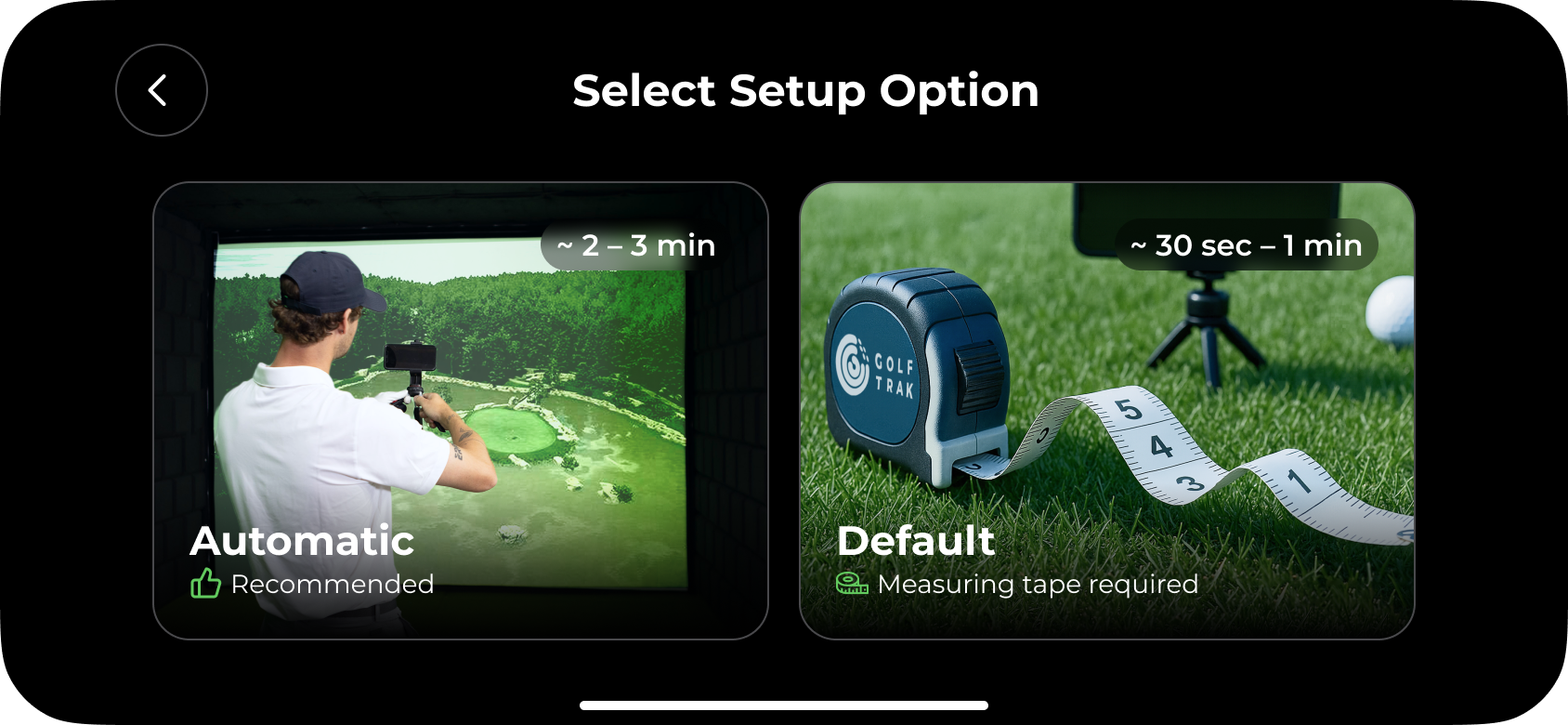
Requires only your phone
Uses in-built features to scan your area
Can be less accurate than manual option.
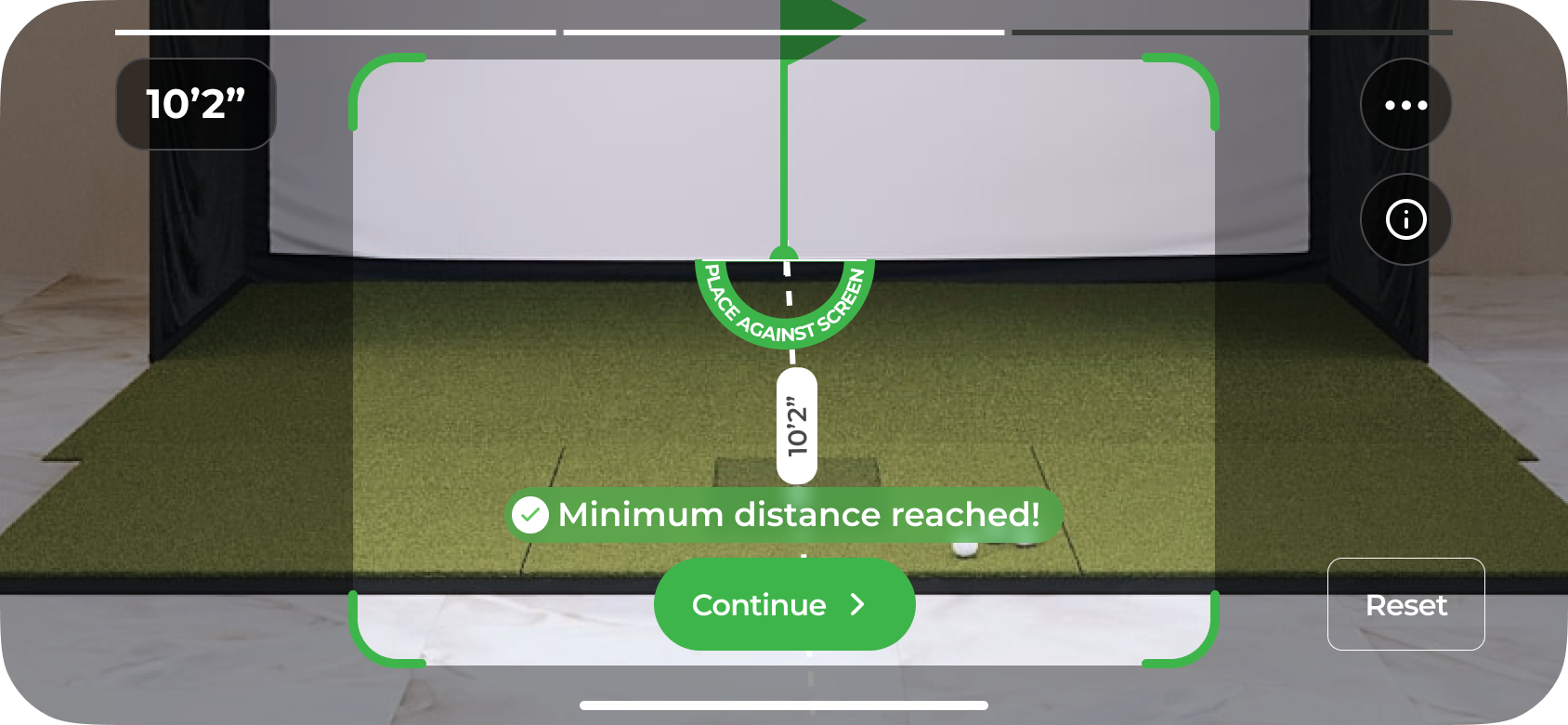
Automatic measurement uses the Augmented Reality (AR) scanning feature in your phone to scan the ground of your setup. This allows you to place the virtual ‘flag’ at the point from which you want to measure.
Scan Your Hitting Area
When prompted to scan your setup area, hold your phone upright and slowly move it around the hitting zone so the app can understand the space. Make sure the area is well lit, since poor lighting can prevent the scan from completing, and note that Pro-level phones use extra camera sensors to improve accuracy. If the scan is difficult to complete, switch to the manual setup option and continue without scanning.
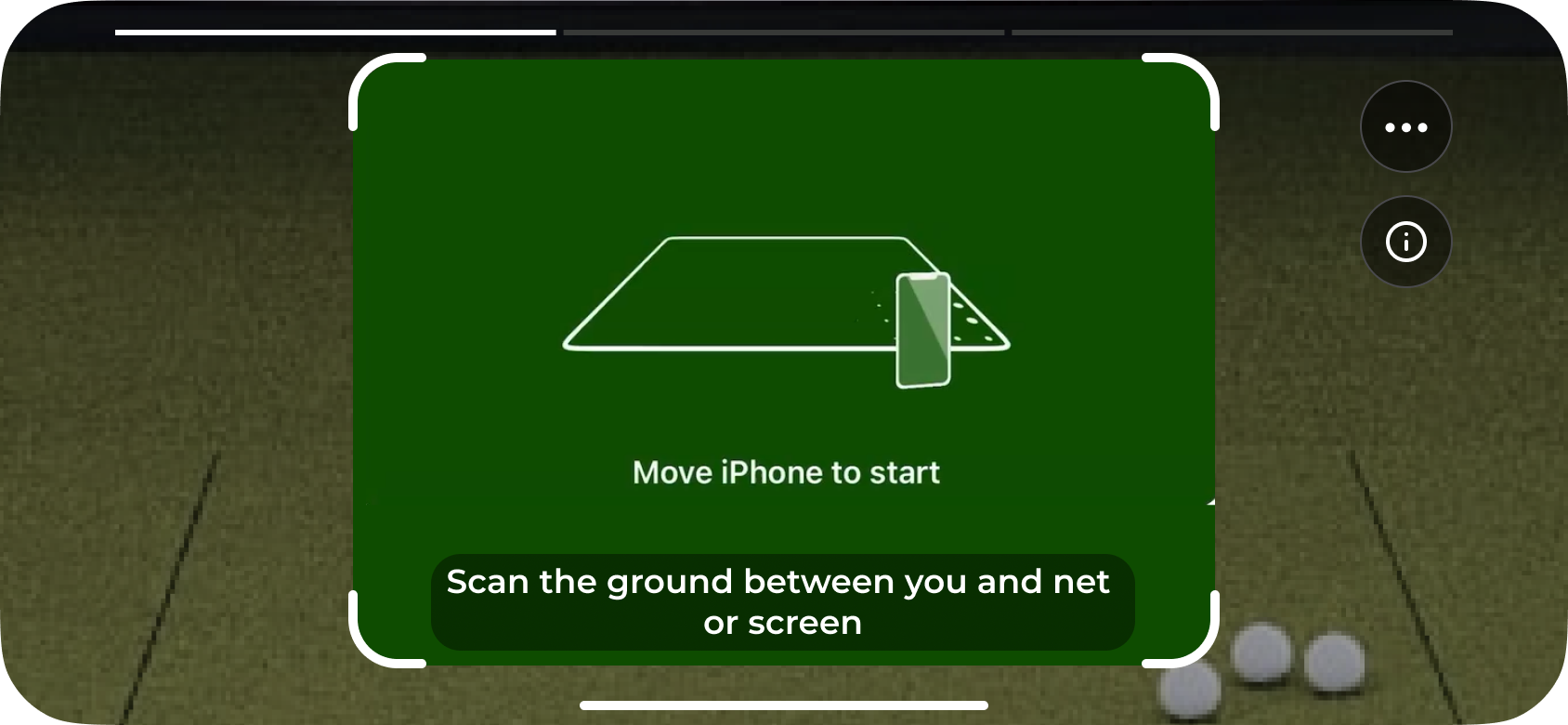
Place The Virtual Flag Measurement Marker
When placing the virtual flag, position it directly against the front surface of your net or impact screen so the app measures from the exact point where the ball will hit. This is a key step because the distance calculation starts at the flag location, and even a small gap can cause your shot distances to read incorrectly. Make sure the flag aligns with the true impact point, not the mat or the space behind the screen.
Once you have reached the distance where you will place your phone, tap the 'continue’ button to proceed to the next step but DO NOT place your phone on the ground yet.
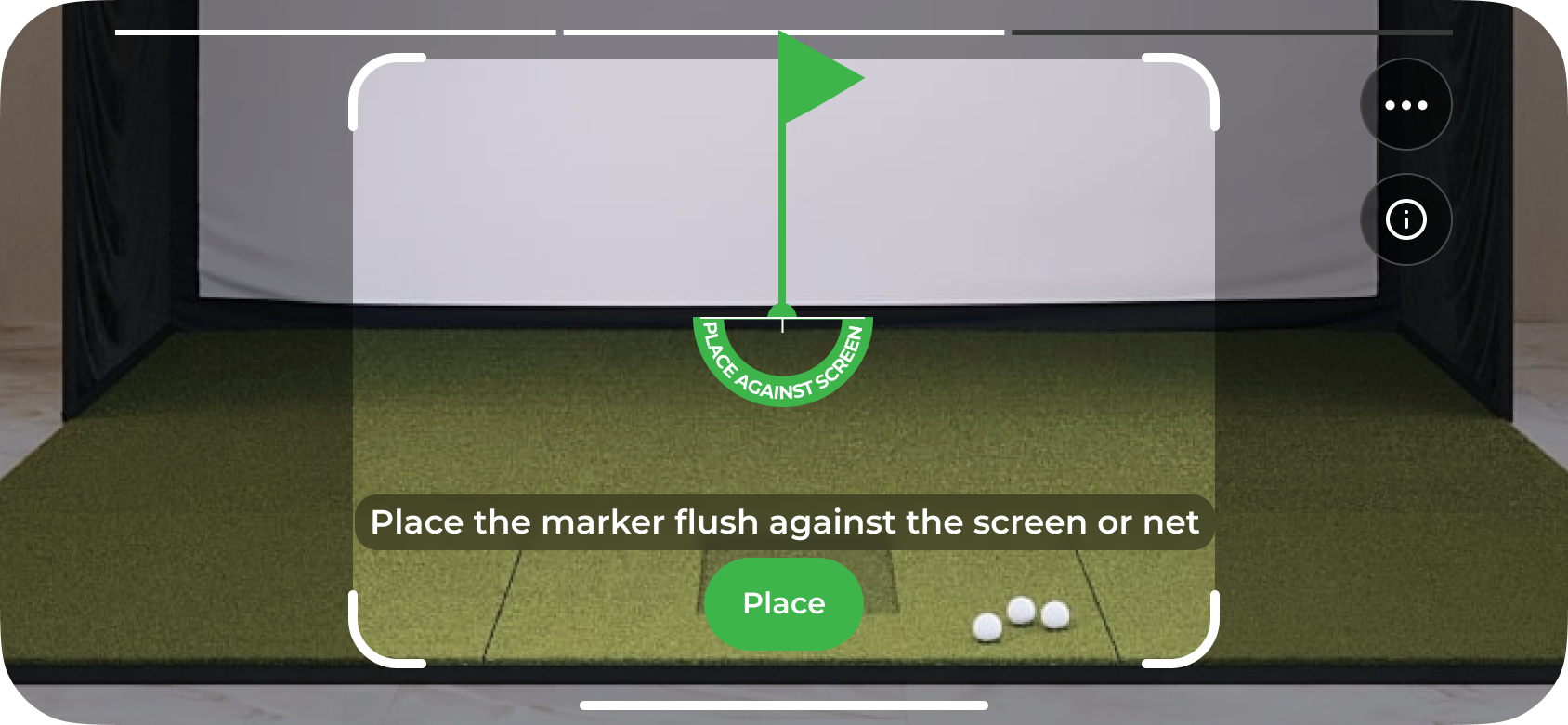
Requires a measuring tape
No scanning required
Most accurate option.
Manual measurement lets you set the distance yourself using a measuring tape. You will measure between the same two reference points used in Automatic mode: the impact point on your net or screen, and the phone position behind the ball. This method removes any variability from scanning and ensures your measurements align precisely with your physical setup.
Measure From the Impact Point
Place the start of your measuring tape directly against the front surface of your net or impact screen. This should be the exact point where the ball will strike.
Measure Back to the Phone Position
Extend the measuring tape straight back along your target line to the point where your phone will be placed. You can use the recommended distance of 4.0 m / 13 ft 1 in, or choose your own custom distance if your space requires it.
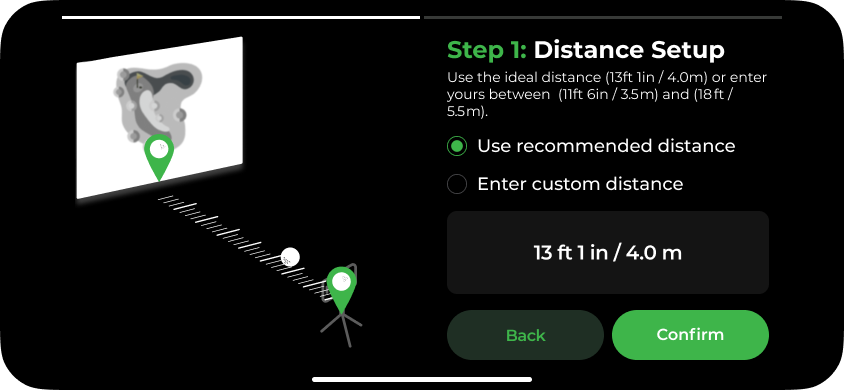
Enter Your Measurement
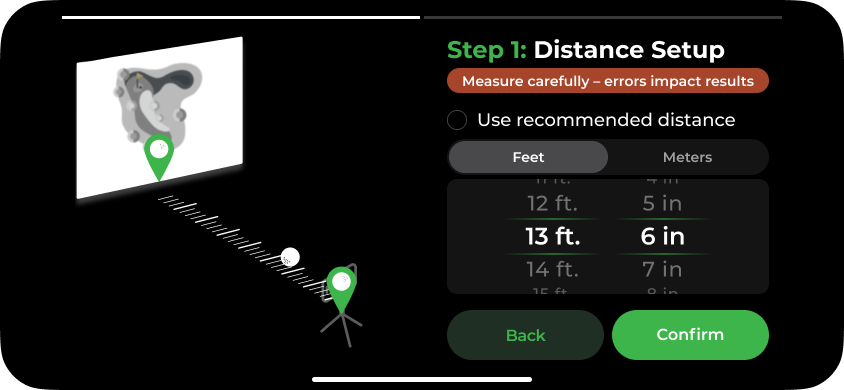
In the app, manually enter the distance you measured to confirm your setup. Make sure this value matches the exact distance from the net or screen to the phone position.
In order to place your phone in the right position, follow these steps.
Place your ball in the position where you will be hitting your shots from. This area of 8”x4”/20cm x 10xm will be where you place your ball for each shot during the session.
Measure approximately 4 ft / 1.2 m behind the ball, in the direction away from your target. To estimate the distance, lay your driver flat on the ground behind the ball with the club pointing toward your hitting target.
Place your phone on the ground at that measured point, at the end of the driver, with the phone positioned behind the ball and facing toward your hitting target.
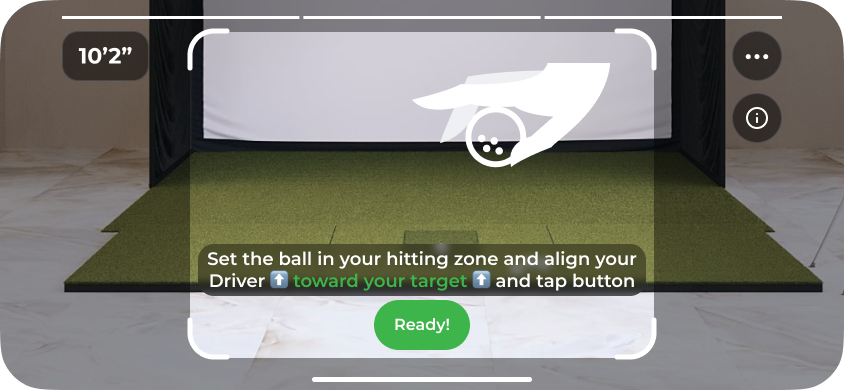
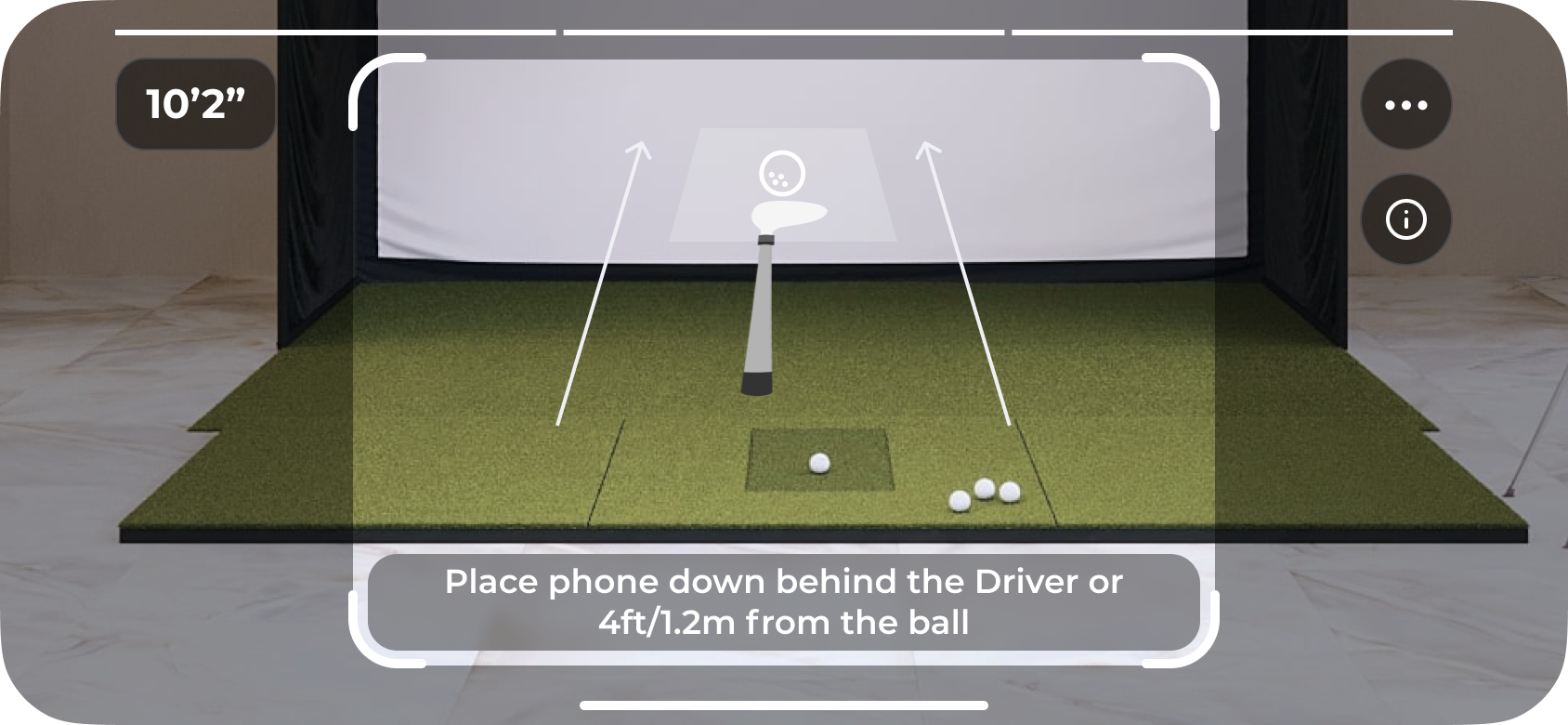
In order for the phone’s camera to see both the strike and the ball’s impact point to track the shot correctly, you must angle and align it correctly.
Place your phone on the ground at the measured position behind the ball and wait a moment for it to sit completely still.
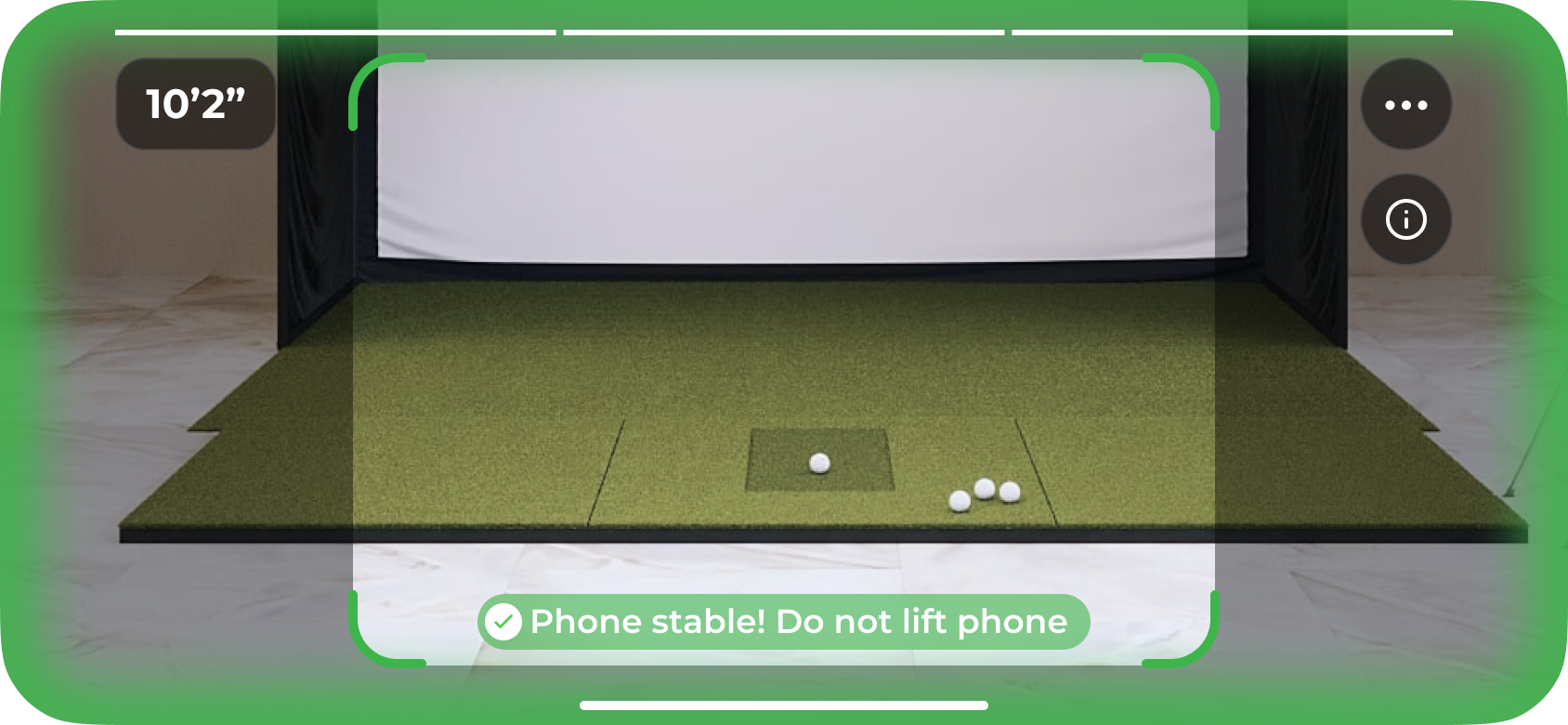
Once stable, adjust the phone angle so the camera clearly captures the ball at address, the club at impact, and the initial ball flight all the way to the screen or net.
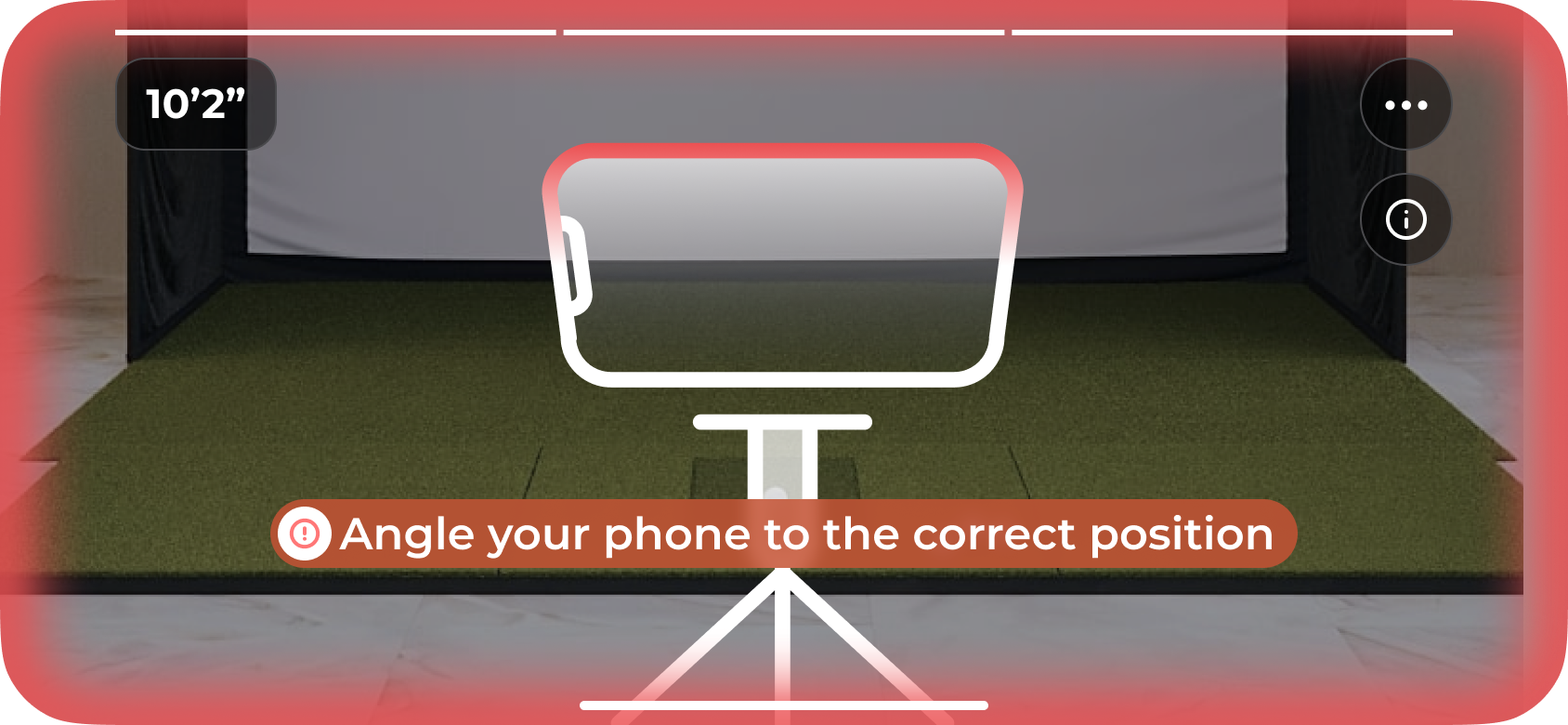
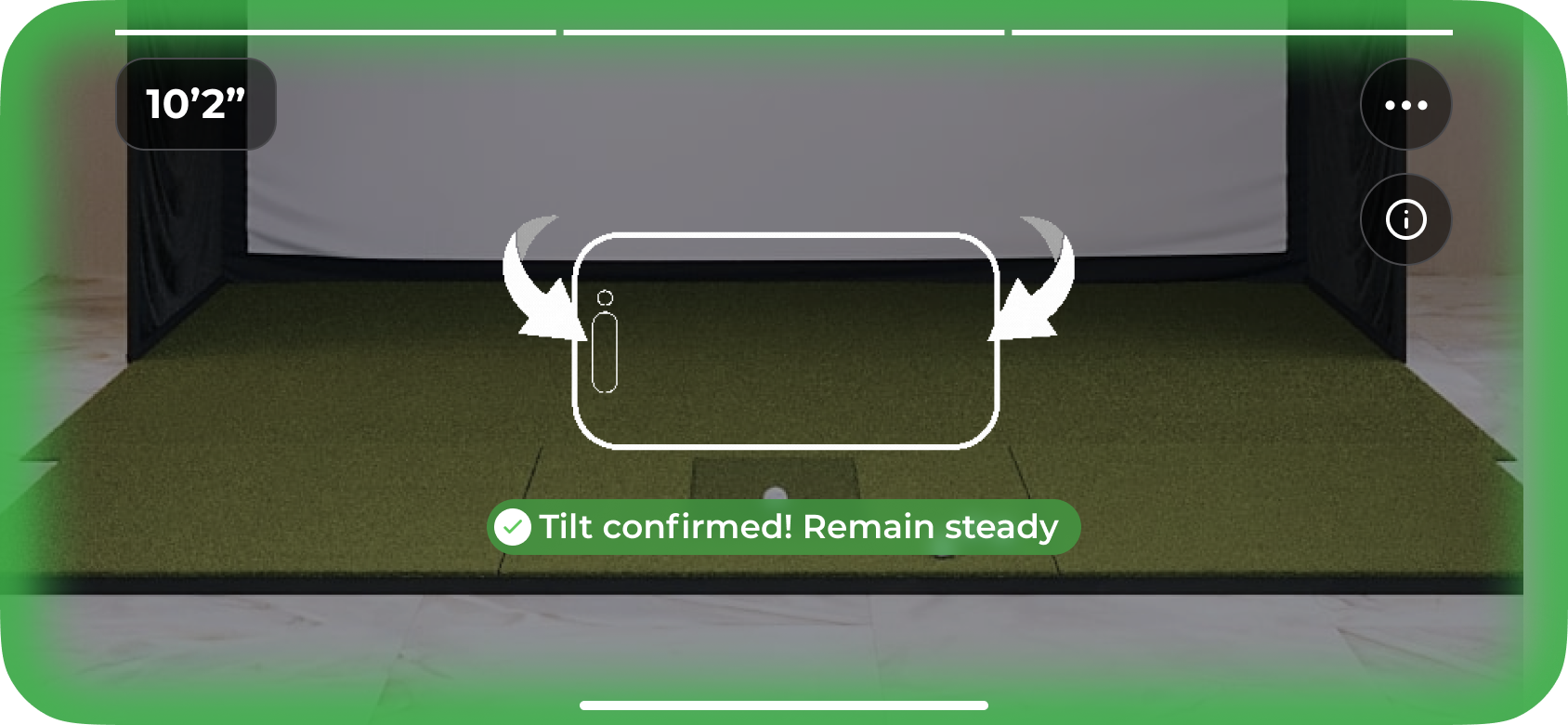
Once all setup steps are complete, the app will switch into ball detection mode.
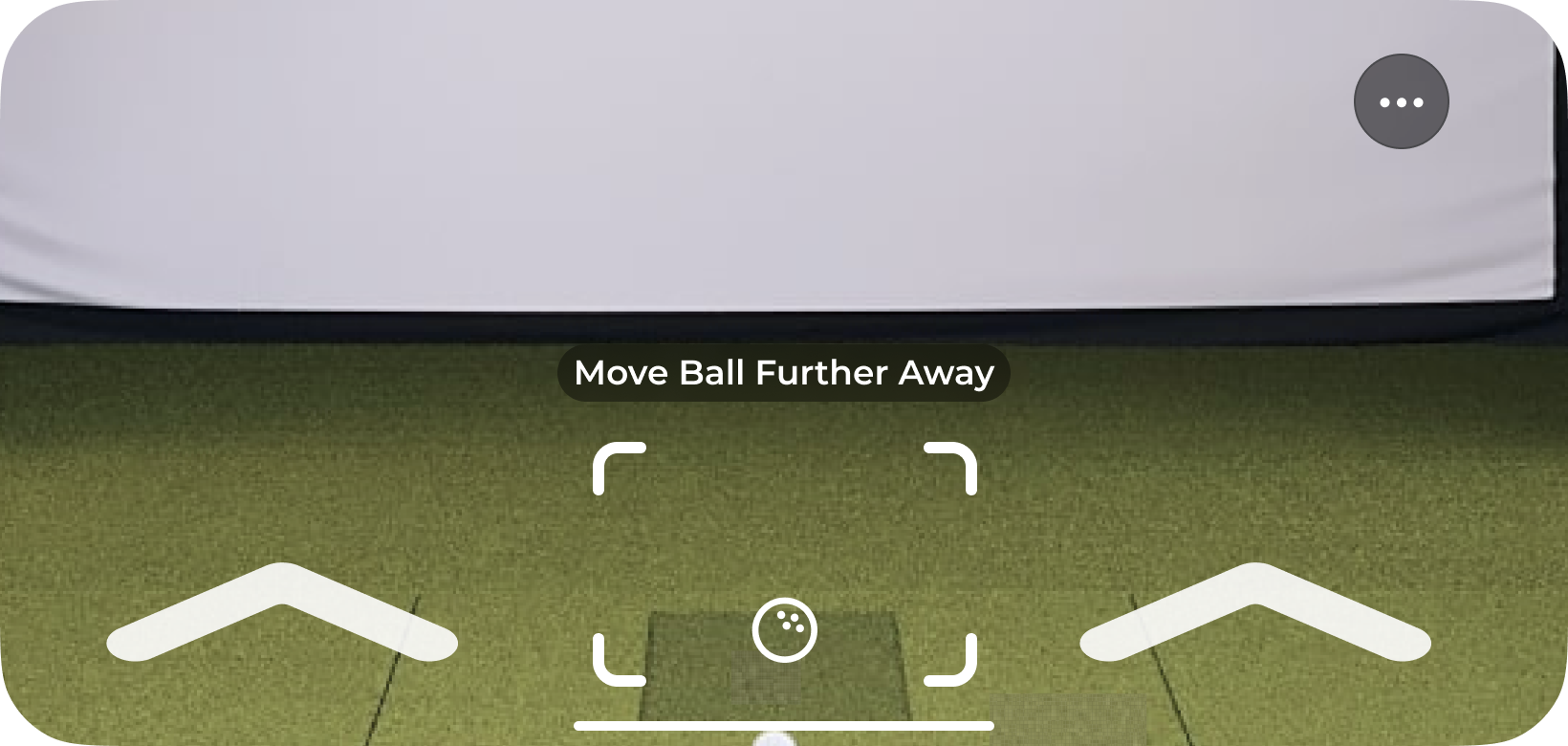
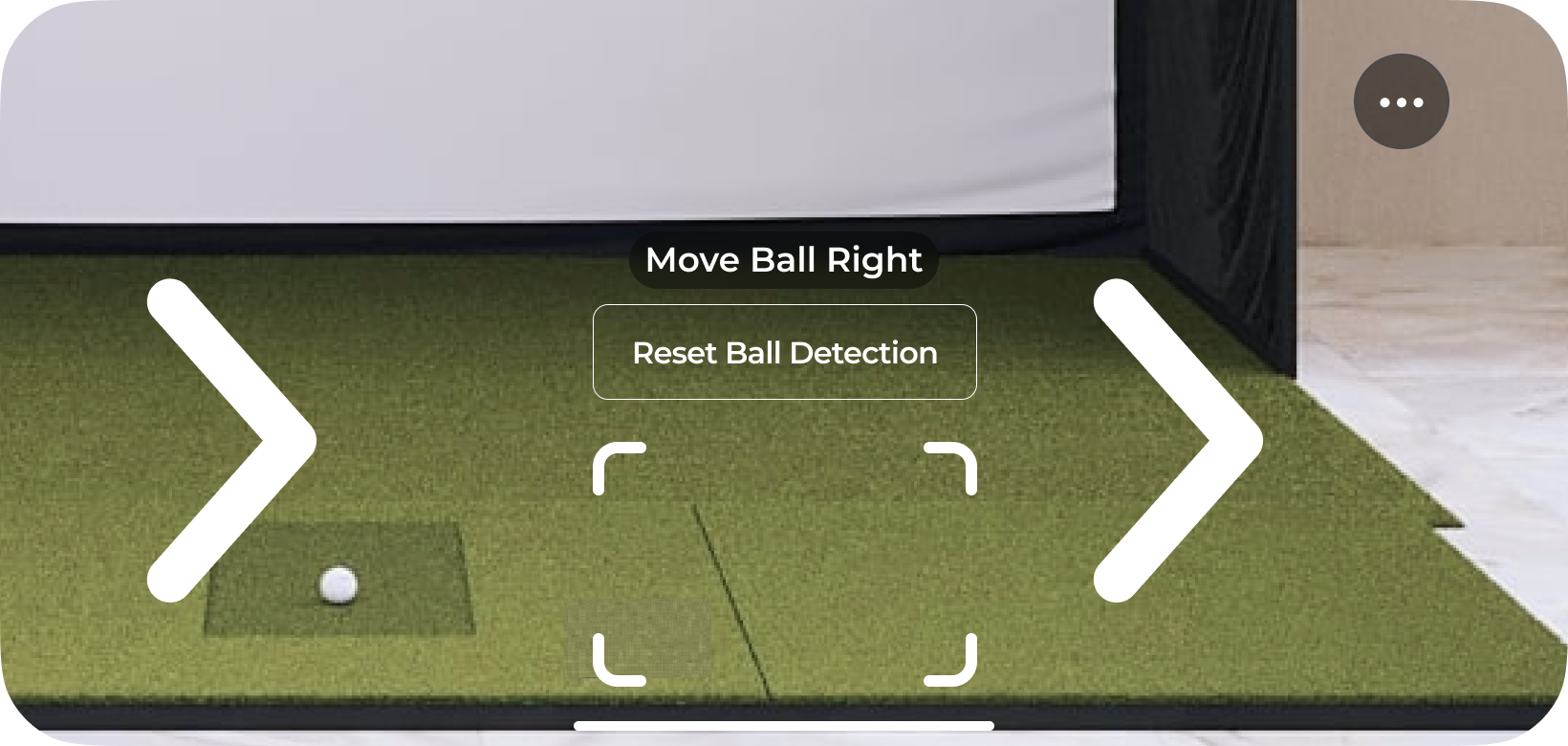
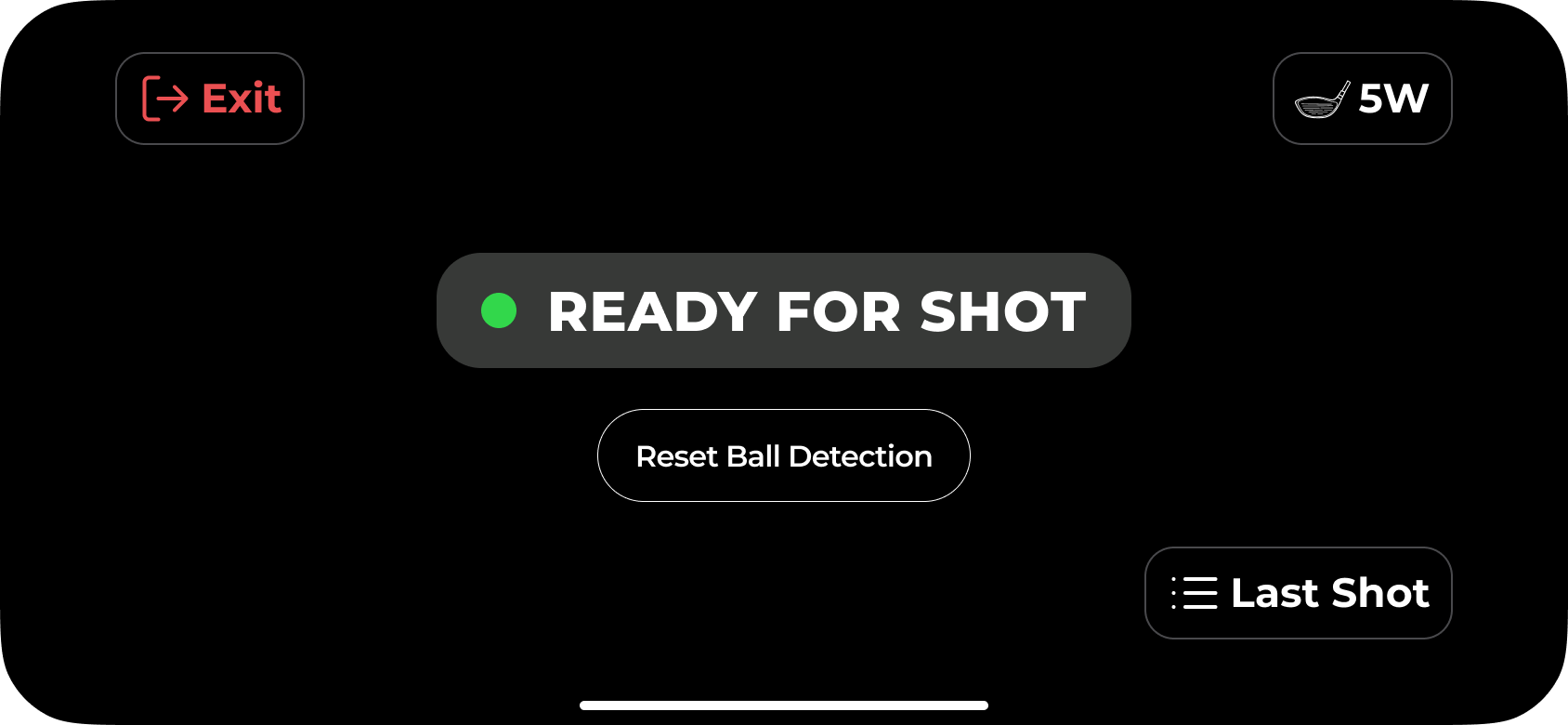
If setup is completed correctly the app should detect your ball’s position immediately. You may be prompted to move your ball to a position where the app can better detect and track it. Follow the on-screen and audio prompts until your ball is detected.
Other relevant articles to assist with shot setup:
Quickstart GolfTrak guide
Want to start tracking those shots asap? Check out how to get going straight away and start analyzing your results
Important Troubleshooting Tips
If GolfTrak is displaying incorrect data, readings or is unable to read results. Follow these key setup tips.